AdsToSlide
Build your own presentation draft: cover, pages and order
Create a draft, pick one of 12 covers, add the pages you need from the template library and set the order — then use it for any client.
2026-10-28
Basic, Standard and Detail are only starting points. Most agencies end up with drafts of their own: a short one for monthly check-ins, a longer one for quarterly reviews, one for e-commerce clients with Shopping pages. A draft is simply a cover, a list of pages in a fixed order and a closing slide.
1. Create the draft
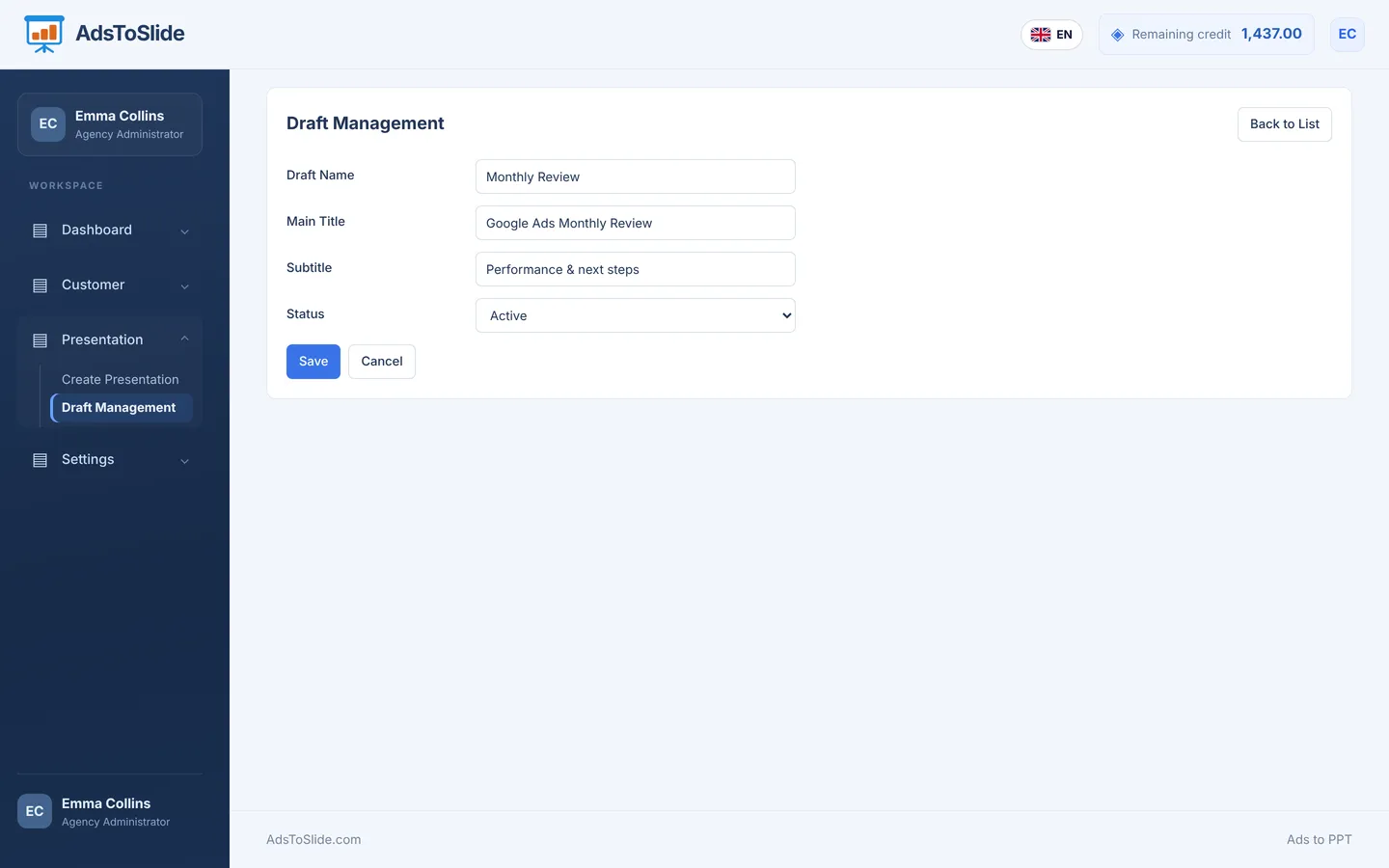
Open Presentation → Draft Management and click New Draft. Give it three things:
- Draft name — what your team sees in lists, for example “Monthly Review”.
- Main title and subtitle — printed on the cover of every presentation, for example “Google Ads Monthly Review” and “Performance & next steps”.
2. Choose a cover
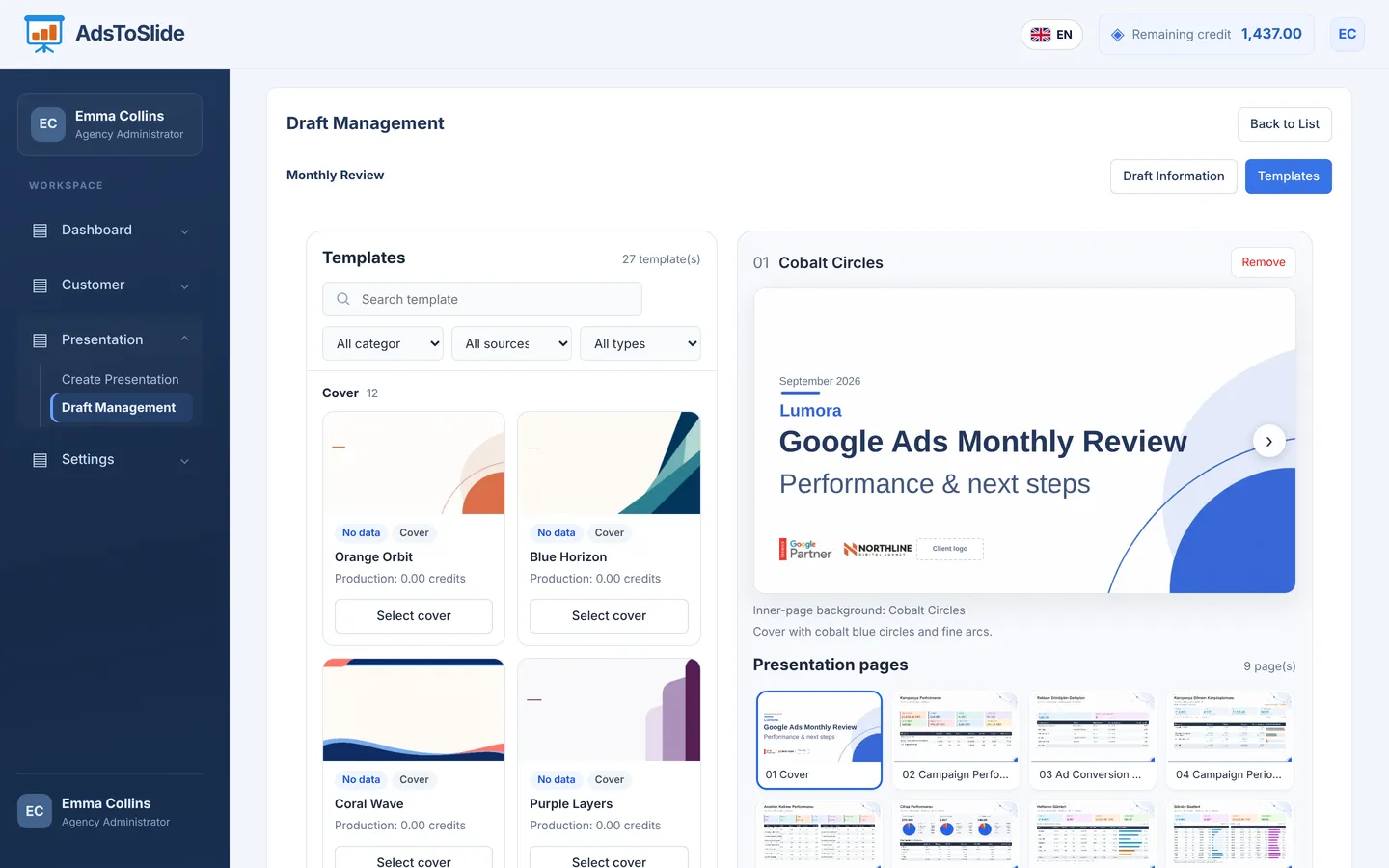
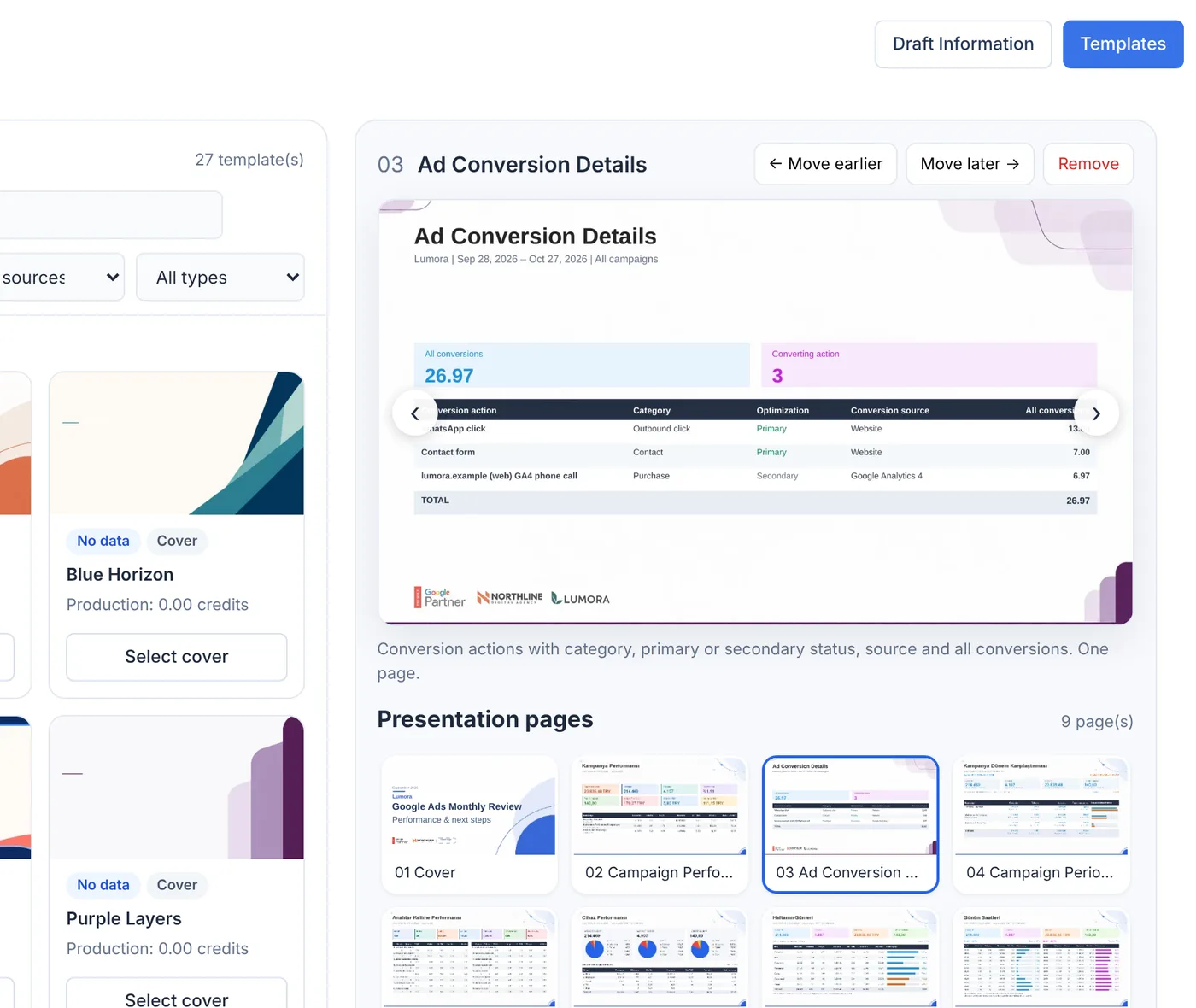
The template library starts with 12 cover designs. Click Select cover on the one you like. The preview on the right immediately shows your title, the client name, the period and both logos on that design — exactly as the client will see it.
3. Add the pages you need
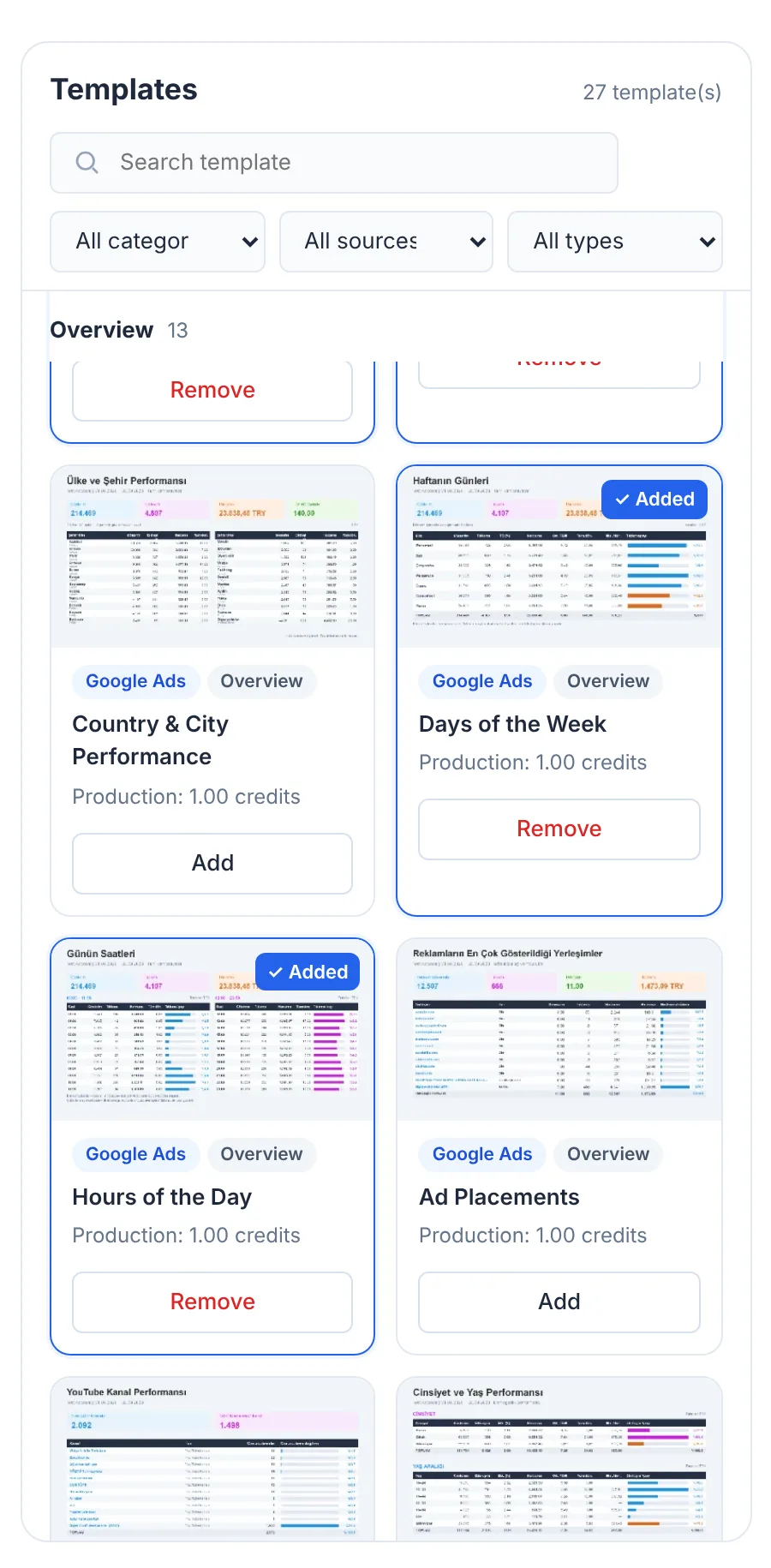
Filter the library by category, data source or type, or search by name. Each card shows what the page contains and its production cost: data pages cost 1 credit, covers and the closing slide are free. Click Add to place a page at the end of the presentation.
4. Set the order
Click a page in Presentation pages to preview it, then use Move earlier or Move later — or drag it to a new position. A good order follows the questions clients ask: how did we do, compared with last time, what drove it, where should we act next.
Keep monthly drafts short — six to eight pages is plenty. Put the detailed breakdowns in a separate quarterly draft instead of making every report longer.
5. Save and use it
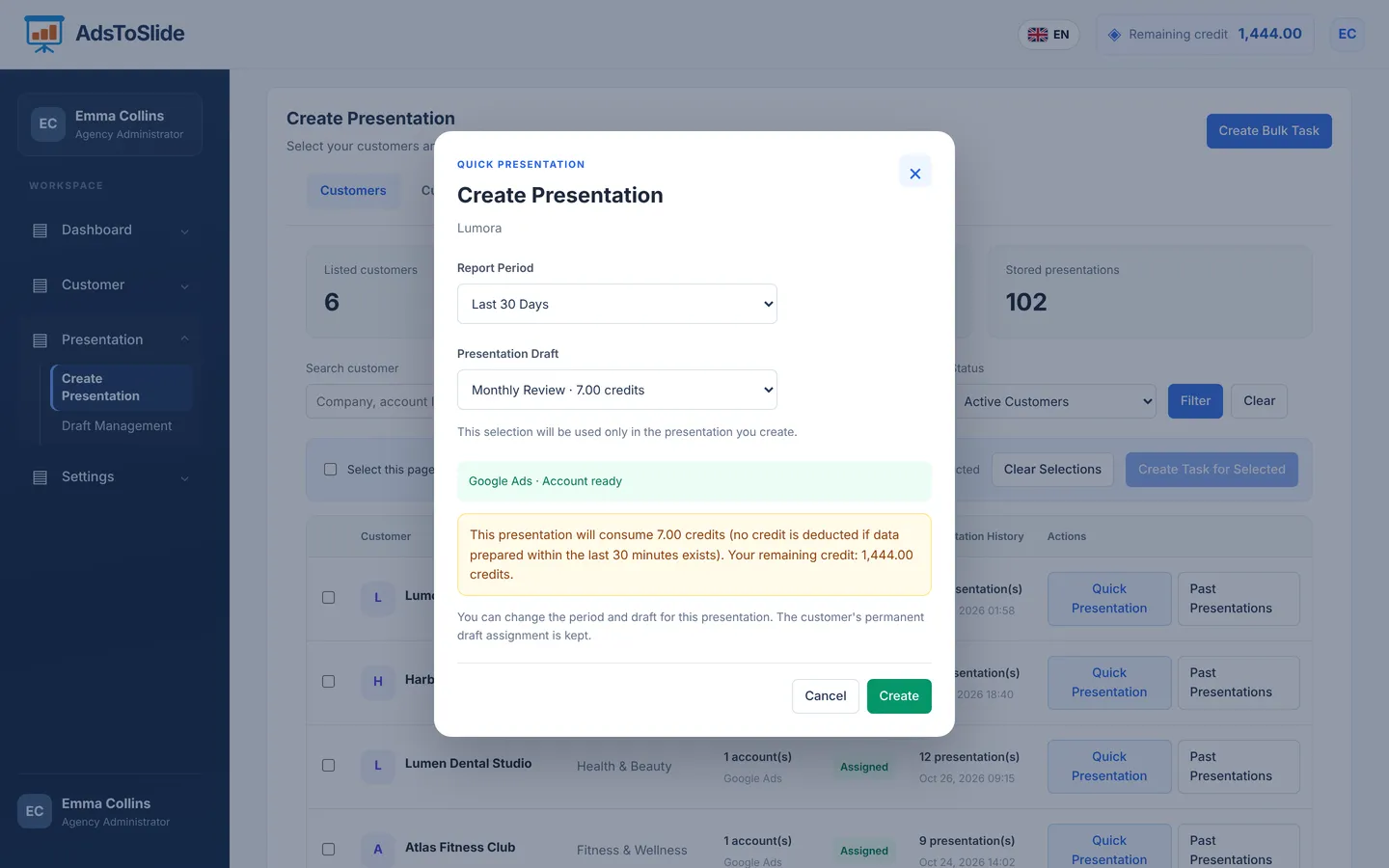
Click Save selections. The draft list now shows your cover and page count. Assign the draft to a client or a client group, or pick it for a single presentation in Quick Presentation — the credit cost is shown before you create.