 AdsToSlide
Month-end reports for all clients with bulk tasks
Select clients or a whole group, set the draft per client and let one task produce every presentation.
2026-10-28
When the first working day of the month arrives, you do not want to click Quick Presentation thirty times. A bulk task prepares all of those reports in one go and keeps track of each one.
1. Select the clients
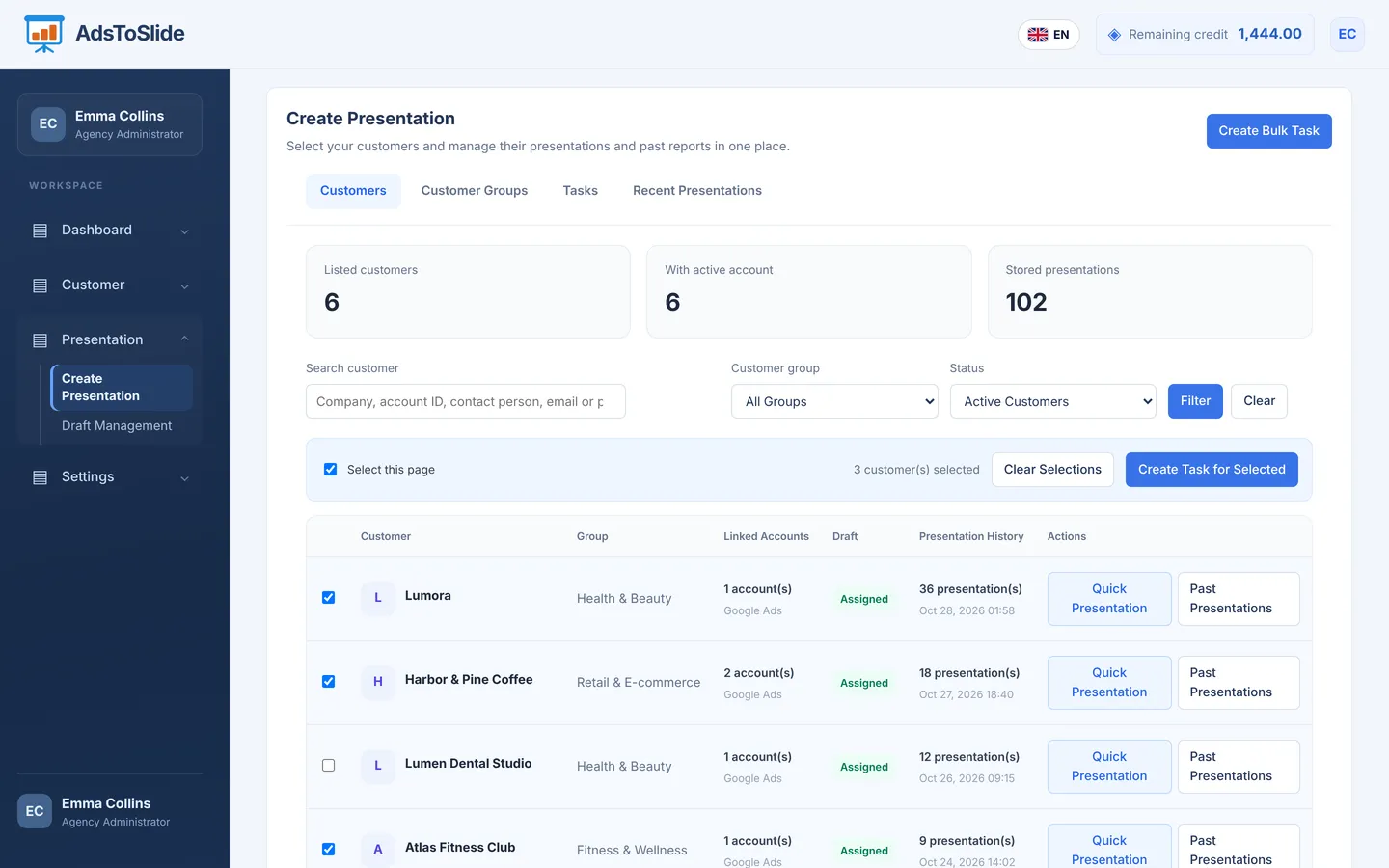
In Create Presentation → Customers, tick the clients you want, or use Select this page. Selections are kept while you filter, so you can build the list from several searches. Then click Create Task for Selected.
2. Set up the task
- Task name — for example “Monthly reports – October”, so the team can find it later.
- Report period — usually Last month at month-end, or Last 30 days for rolling reports.
- Report language — keep Customer default to use each client's own language, or set one language for the whole run.
- Drafts — assigned drafts come preselected. Use Shared Draft → Apply to This Task to give everyone the same draft, or change it row by row.
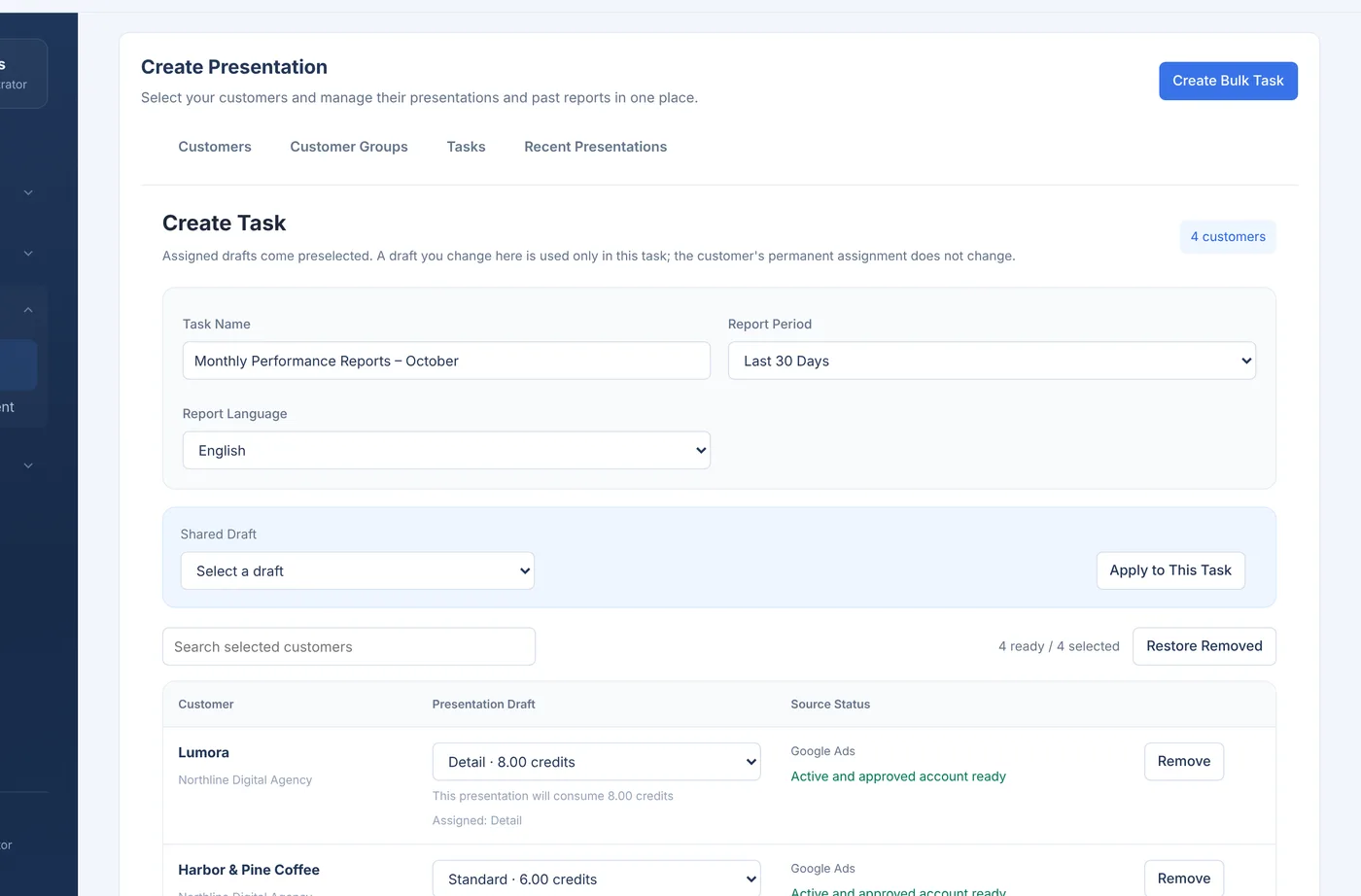
The bottom of the form shows the estimated total and your remaining credit. If the balance is tight, Select as Many Customers as Credit Allows trims the list for you.
3. Start and follow the task
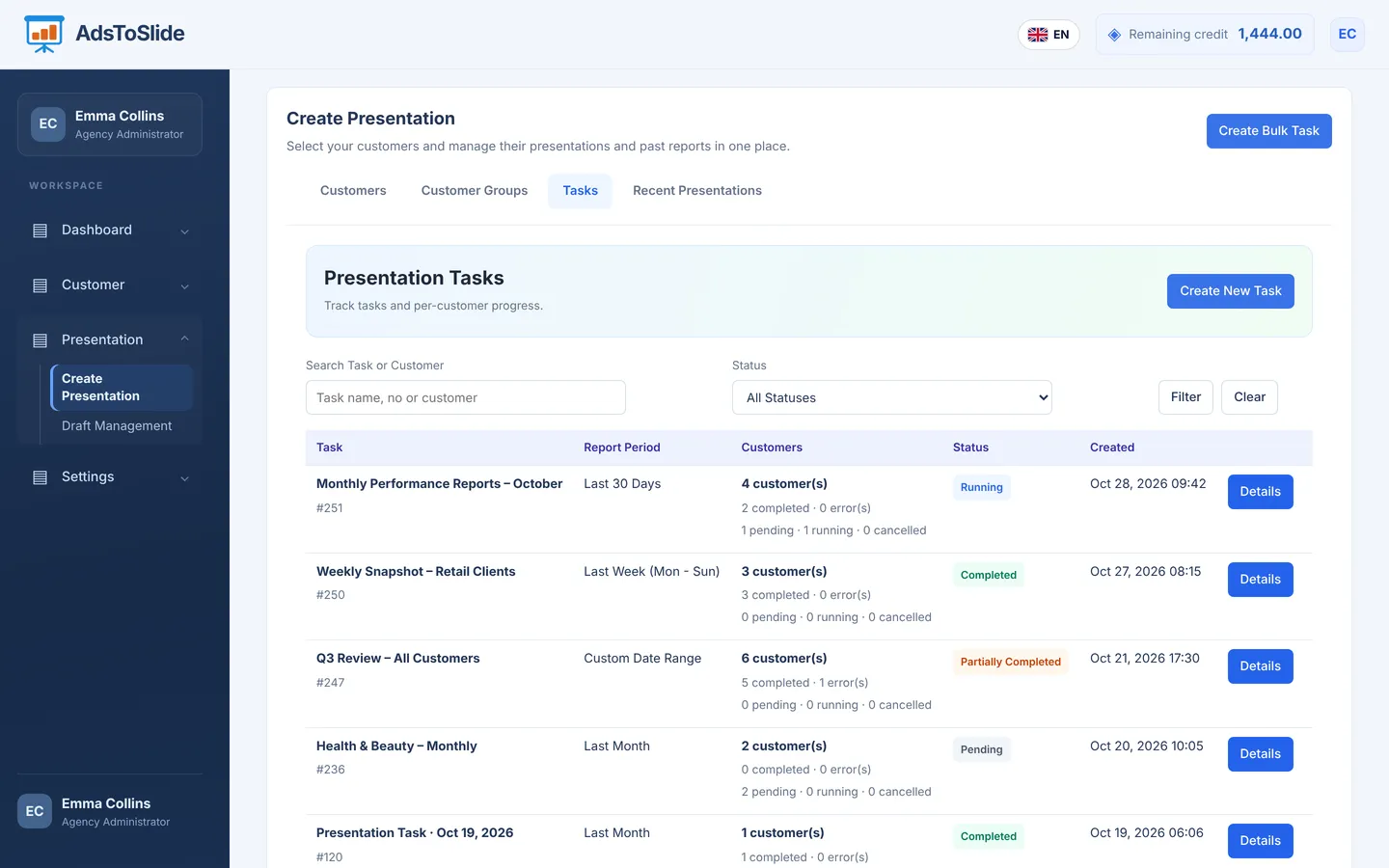
Saving the task does not start generation yet; you are asked to confirm the credit use when it starts. In Tasks you can follow every run: how many clients completed, how many are pending or running and whether any had an error.
A month-end routine that works
- Two days before month-end, check every client has an active account and an assigned draft.
- On day one, create one task per client group with Last month as the period.
- Download the files from Recent Presentations, add your commentary and send them out.